
I LET AN AI USE MY BROWSER. HERE'S THE ONE SETTING YOU NEED TO CHANGE.
AI can now click around your browser for you. Before you let it, open the permissions screen almost nobody reads — and change one setting.
AI can now work inside your browser. Claude, and tools like it, can click around, read pages, and fill forms for you. It can build inside your Shopify admin while you focus on the actual creative work.
I use AI in my design workflow every day, so I installed it right away. Then I saw the permissions screen and stopped.
"Read and change all your data on all websites."
Most people click Accept without reading that. Don't. Here's what it means and what to do about it, in plain language.
What you're actually agreeing to
When you install an AI browser extension, the default setting is usually "On all sites."
That means the extension is allowed to read and change content on every page you open. Your email. Your bank. Your client accounts. Everything.
Is the AI actually watching all of that? No. These tools mostly act when you ask them to. But there's a difference between what a tool does and what it's allowed to do. The permission decides how bad things get if something ever goes wrong.
And things can go wrong. There's a real risk in this space called prompt injection. Simple version: someone hides instructions inside a webpage. You can't see them, but the AI can read them, and they try to trick it into doing something you never asked for. The companies building these tools are working on protections, but the easiest protection is simple: don't let the AI be active on pages where it doesn't need to be.
The one-minute fix
Every Chrome extension has a site access setting. Almost nobody opens it.
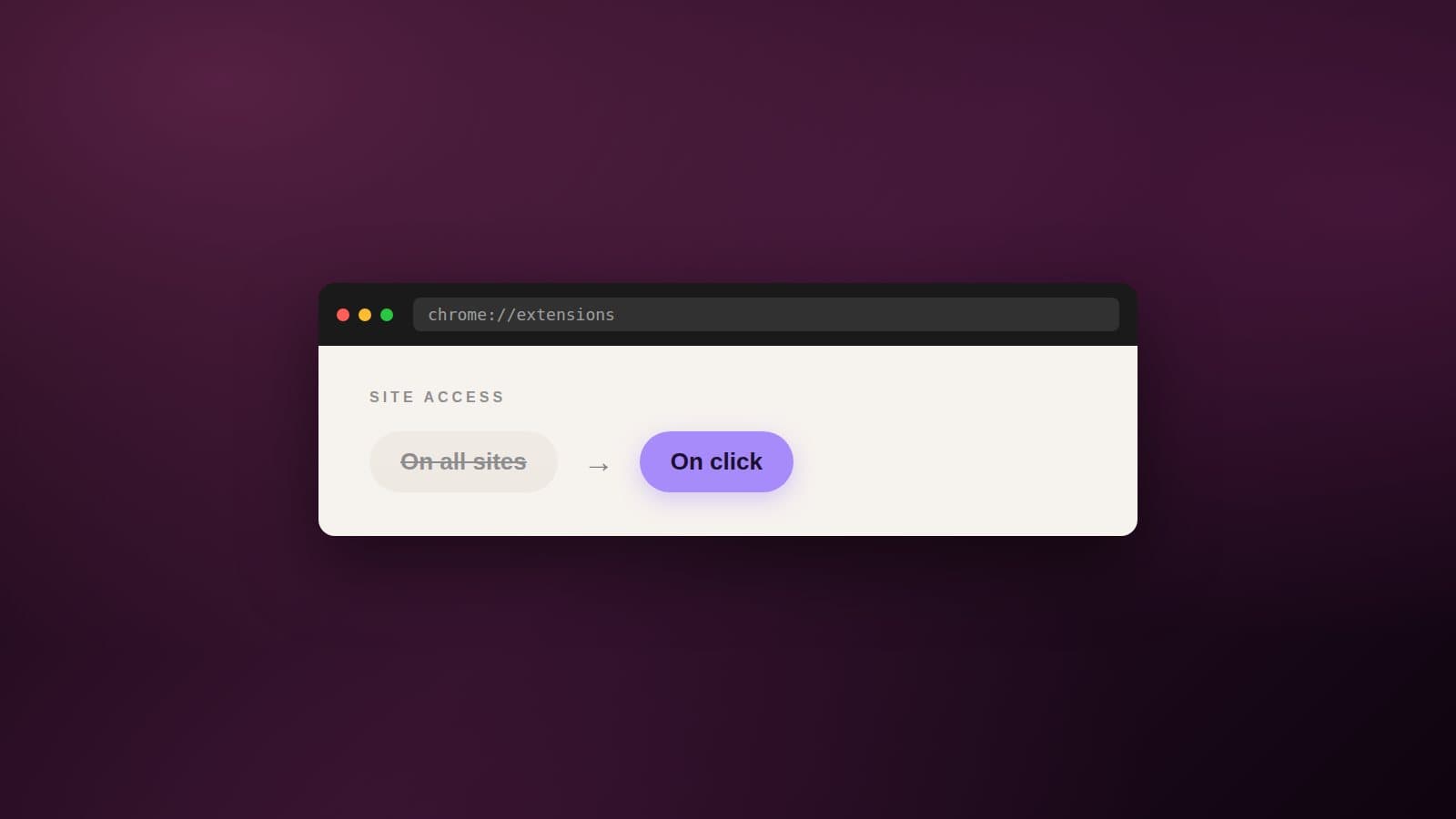
Change "On all sites" to "On click."
That's the whole fix. Now the AI only gets access to a tab when you click the extension and turn it on for that page.
In daily use, you lose almost nothing. When I want Claude working in my Shopify build, I click it on. When I'm in my bank or my personal email, it has no access at all. Not because I don't trust the tool. Because a good setup doesn't depend on trust. It depends on structure.
Two more settings to check while you're in there:
Allow in Incognito: keep it off. Chrome itself warns you about this one. Allow access to file URLs: keep it off unless you have a specific reason.
Why I think about this as a designer
In branding, we build systems that scale without breaking. This is the same idea, just applied to your tools.
Giving an AI full access to everything is like running a brand with no guidelines. It works fine, until the one day it doesn't. Limited access is a guideline. It costs you one extra click and it keeps small problems small.
I use AI for the repetitive layers of web and e-commerce work: QA checks, filling in content, auditing settings. That frees my time for the work that actually needs a creative director. But I only run client work through tools I've set up properly. This is part of that setup.